New: upload video and export it with subtitles
Until now, Murmel was all about audio. But a lot of what people want to transcribe is video: interviews, webinars, lecture recordings, social clips. Starting today you can upload those videos directly — and not just pull out the transcript, but export the video again with burned-in subtitles.
1. Upload your video
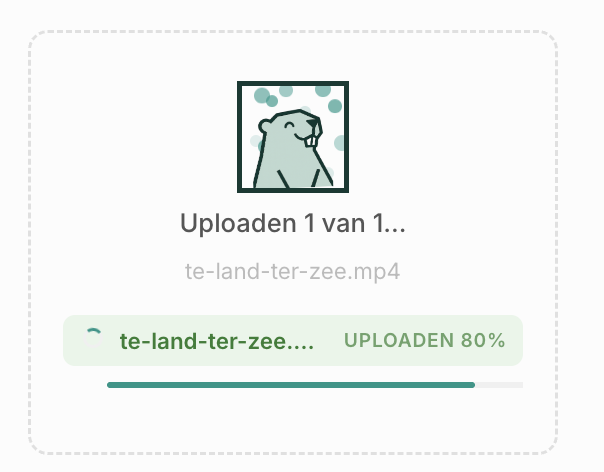
Drop an mp4 or webm into the Studio, just like you would with audio. Because video files are a good deal larger than audio, the upload can take a moment — depending on your connection. So hang on during that first progress bar.
2. Processed at high speed
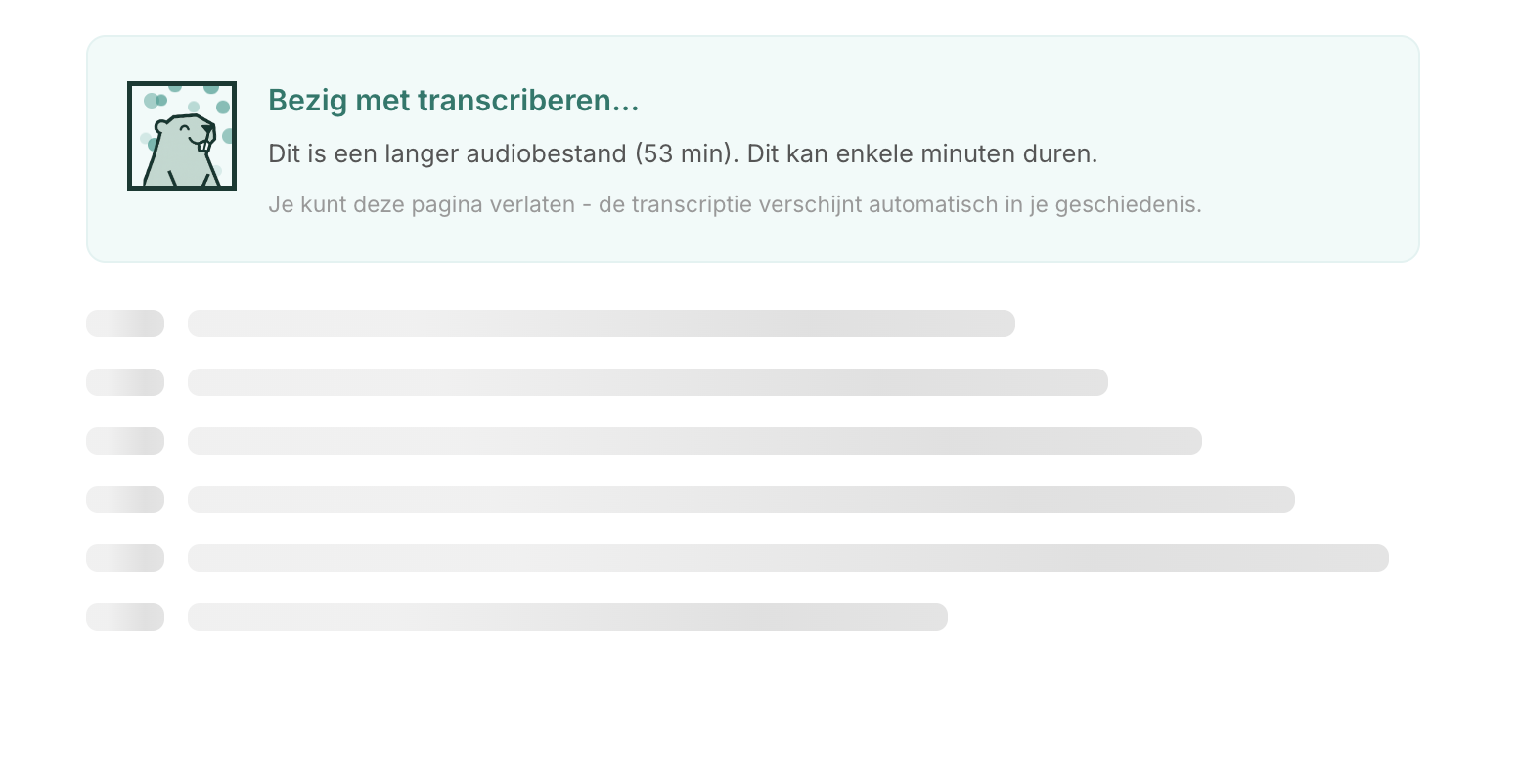
As soon as the video is in, transcription starts. The audio is extracted from the video and processed on the GPUs in Zaandam — at up to 35× faster than realtime. So an hour-long lecture is done in a few minutes.
3. Export as video with subtitles
Here's where it gets fun. In the Studio you see your video next to the transcript. You can edit the transcript, and — this is the handy part — select a piece of text to export just that fragment. Murmel trims the video to your selection exactly.
When exporting you choose between an MP4 with burned-in subtitles (visible everywhere, perfect for social media) or an MP4 with toggleable subtitles (switchable in players like VLC and QuickTime). While it renders, a progress bar shows how far along the export is.
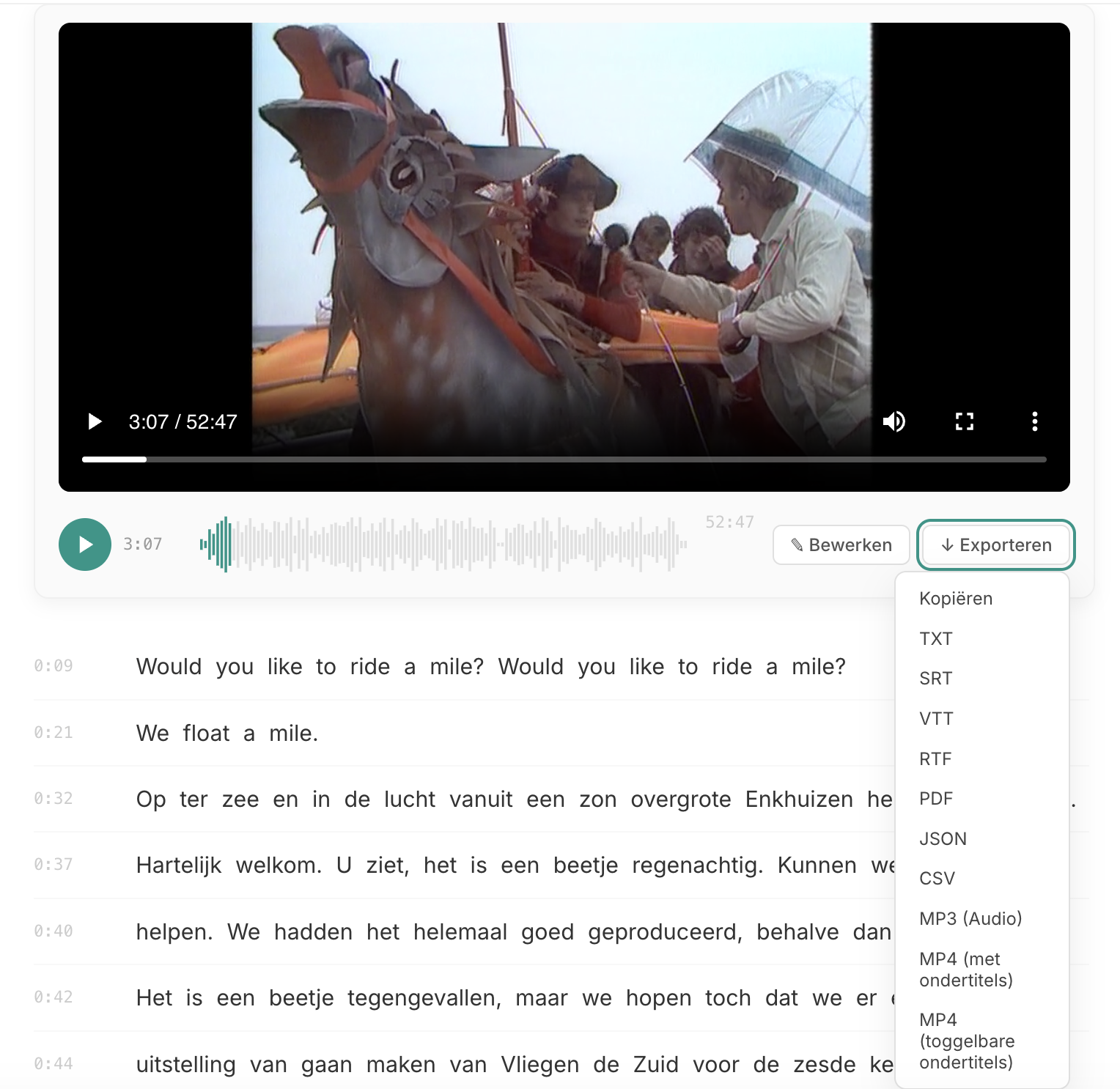
Alongside video you can still export everything you're used to: plain text, SRT and VTT subtitle files, Word/RTF, PDF, JSON and CSV. Video export with subtitles is included on all paid plans.
Why this is useful
No more separate subtitle tool, no manual syncing. Clip a quote from an interview, export it as a ready-made clip with subtitles, and post it straight to LinkedIn or YouTube. Everything stays on Dutch infrastructure — your video never leaves the country.
Run into something, or missing a format? Let me know via the contact form. Usually a reply within one working day.