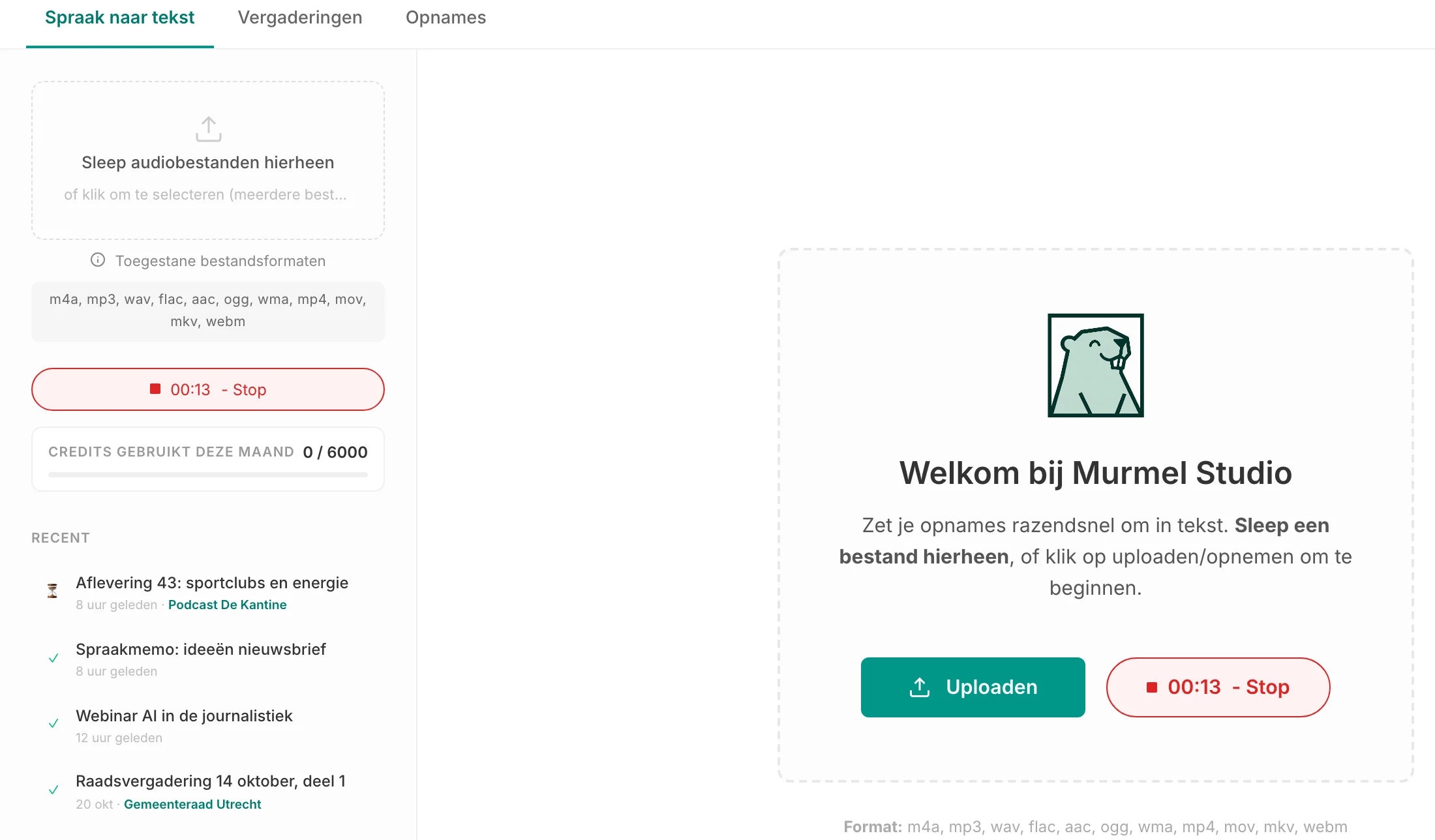
How recording works
- Press RecordIn the Studio, next to Upload, is the Record button. The first time, your browser asks whether Murmel may use your microphone. Choose Allow.
- Watch the waveformWhile recording you see a live waveform and a timer. If the waveform moves when you talk, the sound is coming in. If it stays flat, the wrong microphone is listening.
- Stop the recordingMurmel sends the recording on straight away. An hour of audio is usually converted within a minute.
- Read and correctThe transcript appears in the editor, with speakers. Click a word to hear the audio from that point, fix what is needed and export to Word, PDF or text.
Recording on your phone
The Studio has its own phone layout. Open app.murmel.nl in Safari on an iPhone or Chrome on Android, log in and press Record. Useful for an interview on location, a conversation with a client or an idea you dictate on the go.
- Keep the screen on and stay in the browser. If your phone locks or you switch to another app, the browser may pause the microphone. Set auto-lock to a longer time for now.
- Turn on do not disturb, so an incoming call does not interrupt the recording.
- Place the phone with the microphone towards the speakers, on a soft surface. A table that people tap on is audible.
- Prefer to record with your phone's recorder app? That works too. Upload the file afterwards, see voice memo to text.
No sound? Sorting out microphone access
If you dismissed the microphone prompt, Murmel shows a message. This is how to grant access after all:
- Chrome and Edge on a computer: click the padlock or settings icon left of the web address, set Microphone to Allow and reload the page.
- Safari on a Mac: choose Safari > Settings for app.murmel.nl and set Microphone to Allow.
- iPhone: tap "aA" or the settings icon in the address bar, choose Website Settings and allow the microphone.
- Android: tap the icon left of the web address, choose Permissions and turn on the microphone.
- External microphone or headset: check in your computer's sound settings which microphone is selected as input.
Good to know
- A browser recording lasts up to about two hours. Murmel then saves the recording automatically and converts it. For longer sessions, such as a full council meeting, use a recorder and upload the file. Uploads have no practical length limit.
- If sending fails, for example because the connection drops, the recording stays in your browser. You can try again or download the recording as a file.
- Your vocabulary applies to recordings too. Add difficult names beforehand, see custom vocabulary.
- You do not need to record an online meeting in Teams or Google Meet yourself: that is what the note taker is for.
Frequently asked questions
Do I need an app to record?
No. Recording works in the browser on your computer and your phone. You log in at app.murmel.nl and press Record.
What does a recording cost?
The same as an upload: per minute of audio. With prepaid credits that is €1.45 per hour incl. VAT; Basic gives you 12 hours per month for €10.89 incl. VAT. See pricing.
Where does my recording go?
The recording and transcript are processed and stored in the Netherlands. You choose whether they are kept or deleted automatically after a set period. See security and privacy.