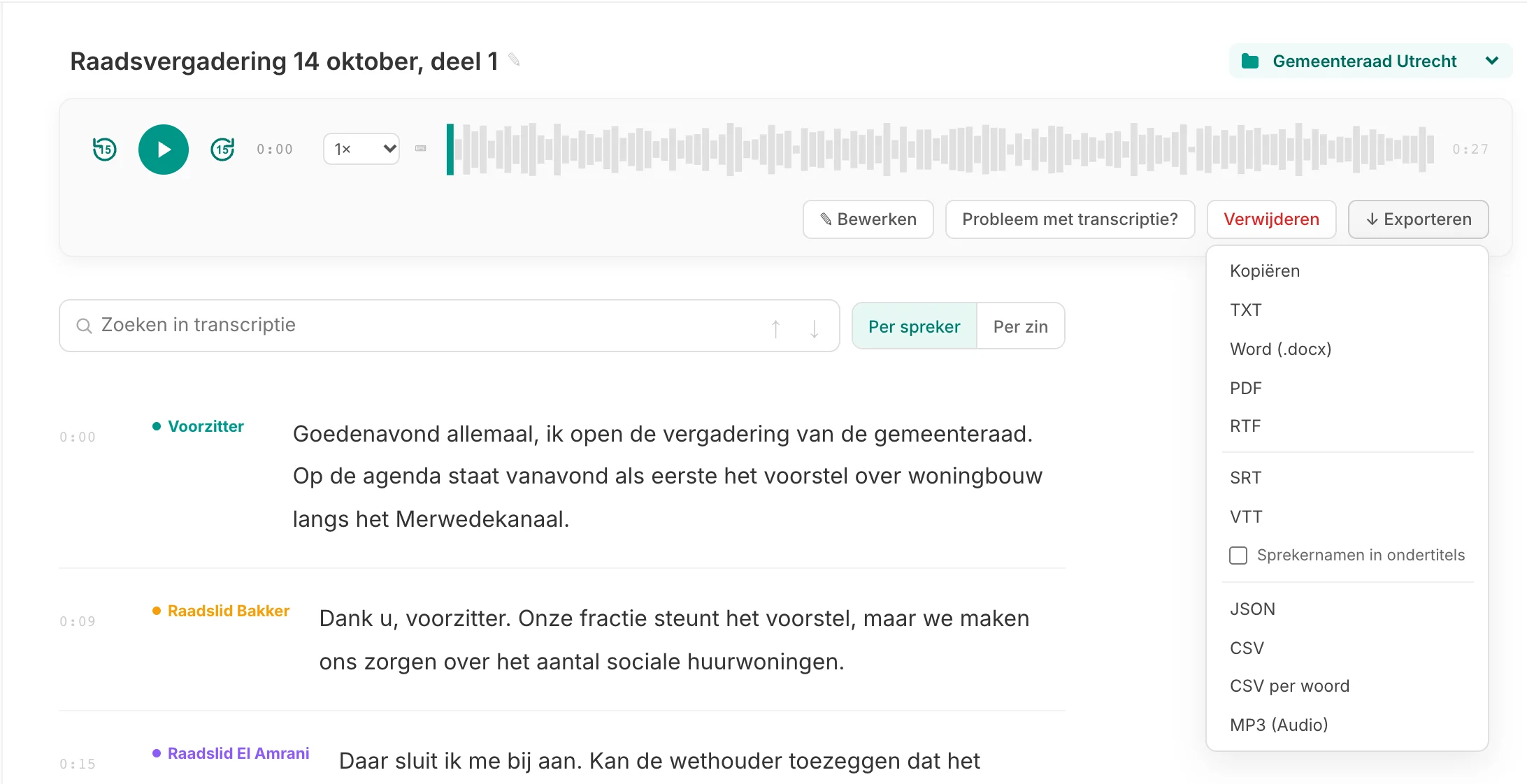
Which format for which purpose
| Format | What for | What it contains |
|---|---|---|
| Word (.docx) | Reports, minutes, interview write-ups you keep editing | Header with title, date and speakers in their colour, page numbers |
| A fixed version to share or archive | Header with title, date and speakers, page numbers | |
| RTF | Opening in Pages, LibreOffice or TextEdit | The same layout as Word |
| TXT or copy | Pasting into an email, CMS or notes app | Plain text, in the layout you choose |
| SRT | Subtitles for YouTube, LinkedIn, Premiere, DaVinci Resolve | Numbered subtitles with start and end time |
| VTT | Subtitles for video on your own website (HTML5 player) | Subtitles with timings in web format |
| MP4 with subtitles | Videos for social media, or with subtitles you can switch on and off | Your own video with the subtitles in it |
| CSV | Analysis in Excel, Google Sheets, SPSS or coding software | One row per sentence: start, end, speaker, text. Also available per word |
| JSON | Your own software, scripts, further processing | All sentences with timings and speakers, as data |
| MP3 | Keeping the audio or sharing a clip | The recording, or only the selected part |
Choosing the layout for text, Word and PDF
For copy, TXT, Word, PDF and RTF you first choose how the text looks. You immediately see a preview based on your own transcript:
- Block per speaker: consecutive sentences from the same person in one paragraph. Reads best for a report.
- Block per speaker with timestamps: the same, with the time each block starts. Handy for finding your way back in the audio.
- Line per sentence: each sentence on its own line, with speaker.
- With timestamps: each sentence with time and speaker. Common for interviews you want to quote from.
- Text only: running text without speakers or times.
The names you give speakers carry over into every export. How to rename speakers is explained on speaker recognition.
Subtitles for video
For SRT and VTT, Murmel cuts the text into short lines that fit on a screen. You choose whether the speaker's name appears in the subtitle. For a video file you can also have an MP4 made:
- MP4, subtitles burned in: the text is fixed in the picture. For Instagram, TikTok, LinkedIn and YouTube Shorts, where many people watch without sound.
- MP4 for media players: the subtitles are a separate track in the file, switchable in VLC or QuickTime. Social media ignore this track.
More on subtitling on subtitle videos.
Exporting just a fragment
Select a part of the transcript and the button changes to "Export fragment". You then get only that part, in any format: a quote as text, a short video clip with subtitles for social media, or the matching audio clip as MP3.
CSV and JSON for analysis
CSV gives one row per sentence with start and end time, speaker and text. With it you can count each participant's speaking time in a spreadsheet, or load the sentences into qualitative analysis software. "CSV per word" gives every single word with timings, for more precise work. To do this automatically for many files, use the API.
Frequently asked questions
Do exports cost extra?
No. All formats are included in every plan and also work with prepaid credits. You can export a transcript as often as you like. See pricing.
Do my corrections carry over into the export?
Yes. An export always uses the last saved version of your transcript, with the speaker names you chose.
Which format do I use for YouTube?
Upload an SRT file with your video in YouTube Studio. Viewers can then switch the subtitles on and off. For Shorts, an MP4 with burned-in subtitles works better.