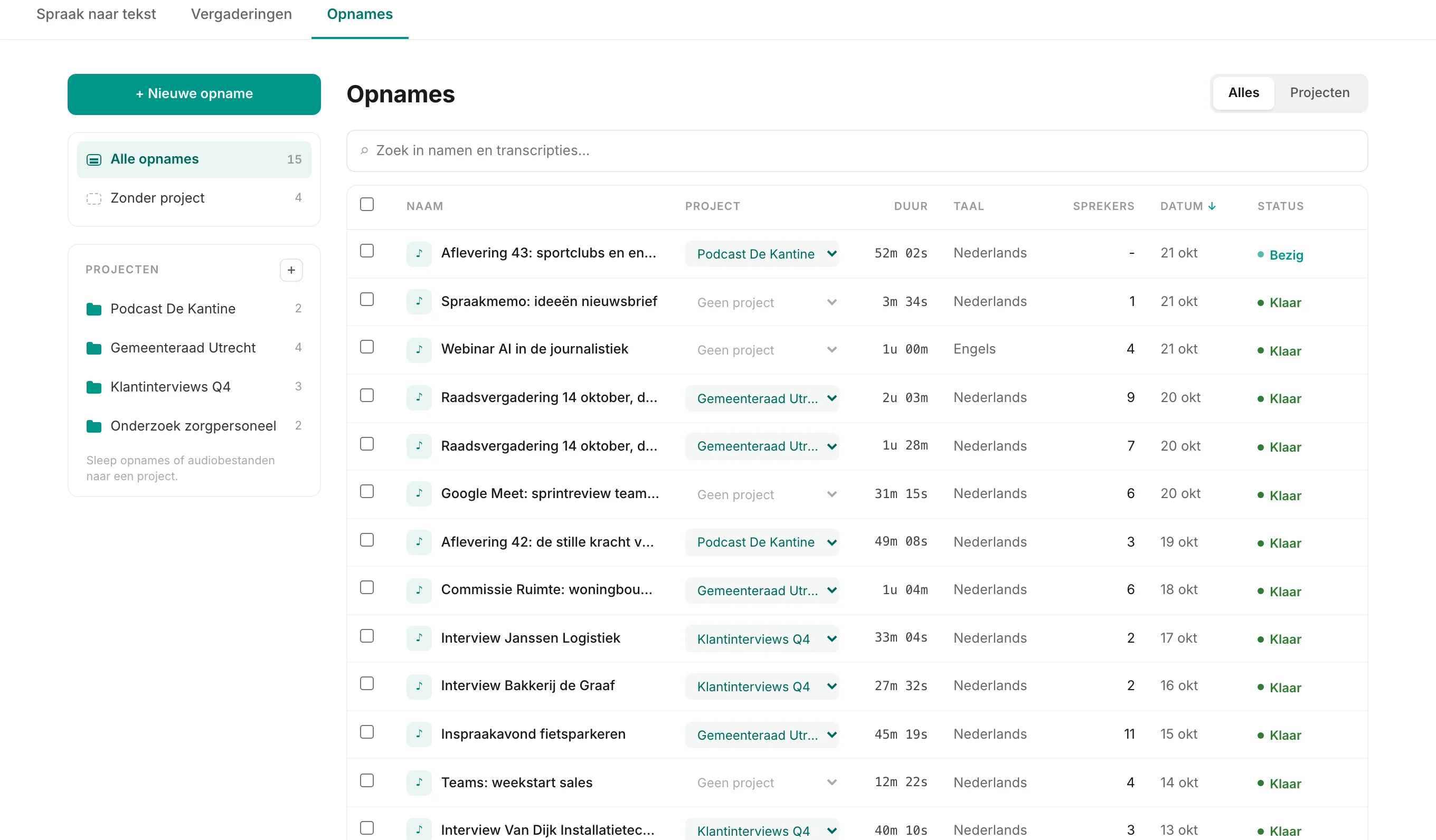
The Recordings tab
In the Studio, next to the transcript, is the Recordings tab. It is a table of all your recordings: name, project, duration, language, the number of speakers found, the date and the status (queued, processing, done). Click a column header to sort, for example by duration to put the longest interviews on top. Click a row to open the transcript.
Projects: folders for your recordings
A project is a folder. Make one per study, client, committee or podcast season. Recordings that do not belong anywhere yet are listed below the project cards, like loose files next to folders on your computer.
- Drag: drag a recording, or a whole selection, onto a project in the sidebar or the project overview.
- Move in a few clicks: tick recordings, choose "Move to…" and pick a project, or create a new project right there.
- Upload straight into a project: drag audio or video files from your computer onto a project. They are uploaded and land in that folder right away.
- Rename and tidy up: rename a project or delete it. The recordings stay where they are, just without a project.
- Bulk delete: select recordings and delete audio and transcripts in one go, permanently.
Uploading many files at once
You can select or drag several files at once. Murmel queues them and processes them one after another; you see the progress per file and get an email when a transcript is ready. Keep the tab open until all files are uploaded; the conversion itself carries on after that, even if you close the browser. Almost every format works (mp3, m4a, wav, mp4, mov and more), up to 1 GB per file with Basic.
Searching all your transcripts
The search bar above the table searches names and the text of your transcripts. Type "rent increase" and you see every recording where the phrase occurs. Inside a project you search only that project. In an open transcript you search further with Ctrl+F (Cmd+F on a Mac), and one click plays the audio at that spot.
Example: a study with 20 interviews
- Create a projectCall it "Thesis interviews". Put the names of your organisations and tricky terms in your vocabulary.
- Drag all twenty files onto the projectTwenty one-hour interviews add up to 20 hours of audio. Murmel processes them one after another; an hour of audio usually takes less than a minute.
- Name the speakersPer interview, turn "Speaker 1" and "Speaker 2" into "Interviewer" and "R07", for example. That keeps respondents anonymous. See speaker recognition.
- Search by theme and exportSearch for a concept to see which interviews it comes back in. Then export to Word or CSV for your coding software, see exporting.
Basic gives you 12 hours per month for €10.89 incl. VAT; for 20 hours at once, prepaid credits or Creator (40 hours) are more practical. Work it out on the pricing page. More on research in transcription for research.
Frequently asked questions
Does a project cost anything extra?
No. Projects, search and the Recordings tab are included in every plan and also work with prepaid credits.
Can a recording be in several projects?
No, a recording belongs to one project or to none. You can always move it.
What happens when I delete a project?
Only the folder disappears. The recordings and transcripts remain under "No project".